How to Make Pinterest Pins for Free
A four-step tutorial using a free pin maker that runs in your browser — no account, no watermark, no design experience required.
You don’t need a design subscription to make pins that get saved. A good pin is mostly three decisions: the right photo, a title that promises something specific, and a layout that keeps that title readable on a phone. This guide walks through each one using Quick Pin Maker, a free tool that does the sizing and typesetting for you.
What you need
- One to six photos (JPG, PNG or WebP) — your own shots or images you have the rights to use.
- A title for your pin. If it’s for a blog post, start with the post’s main keyword.
- Your website name, so people know where the pin came from.
Step 1: Choose two to six strong photos
Open Quick Pin Maker and drag your photos onto the editor, click to browse, or paste a screenshot with Ctrl+V. Vertical photos crop best. For a collage pick one wide establishing shot and a few close-ups.
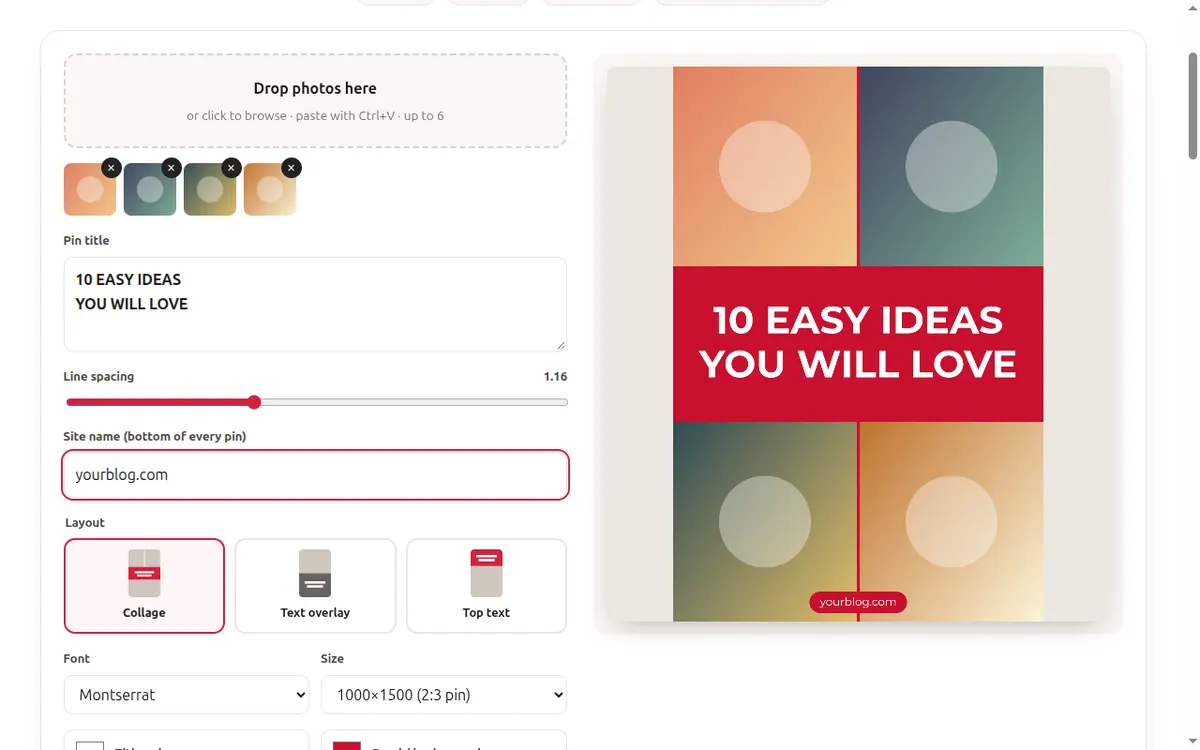
Step 2: Write a title that promises a result
Type your headline in the title box. Press Enter to break it into short lines — the line breaks are kept exactly. The text auto-sizes to fill the width, and the spacing slider adjusts the gap between lines.
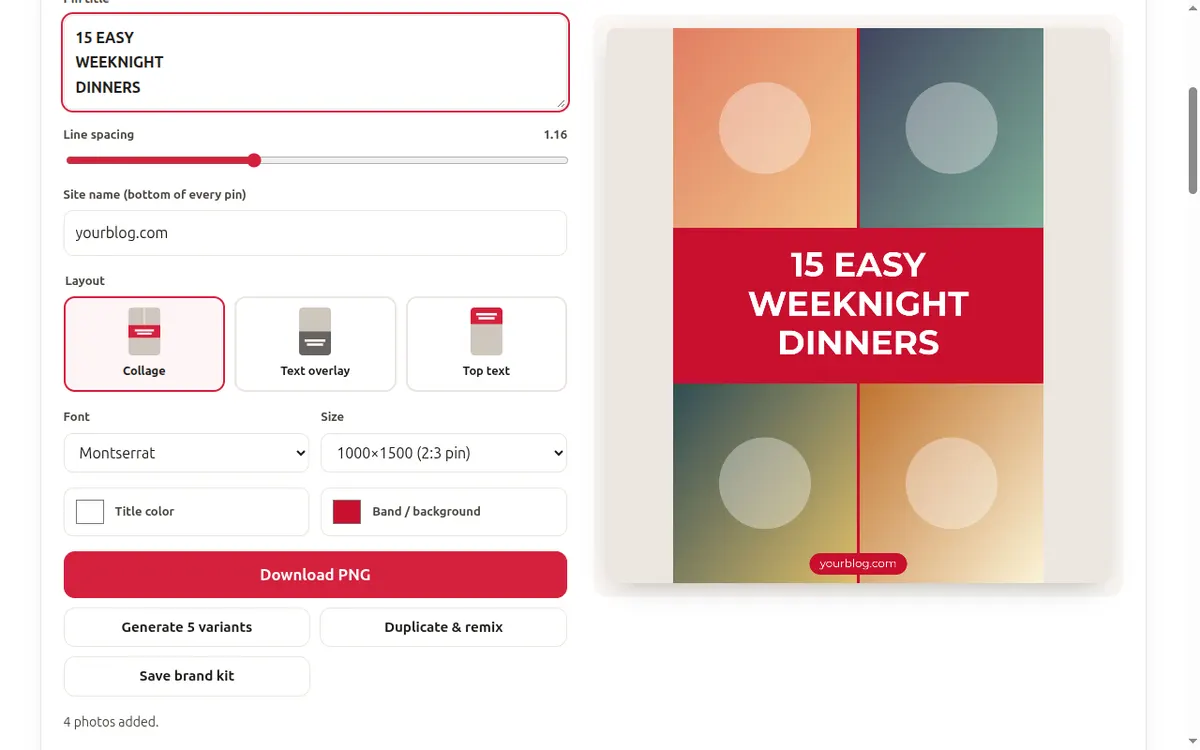
Step 3: Pick a layout and brand it
Choose Collage, Text Overlay, Top Text, Bottom Panel or Side-by-Side. Pick a style preset or set your font, title, accent and band colors, then type your site name so it prints at the bottom of the pin. Click Save brand kit to remember it next time.
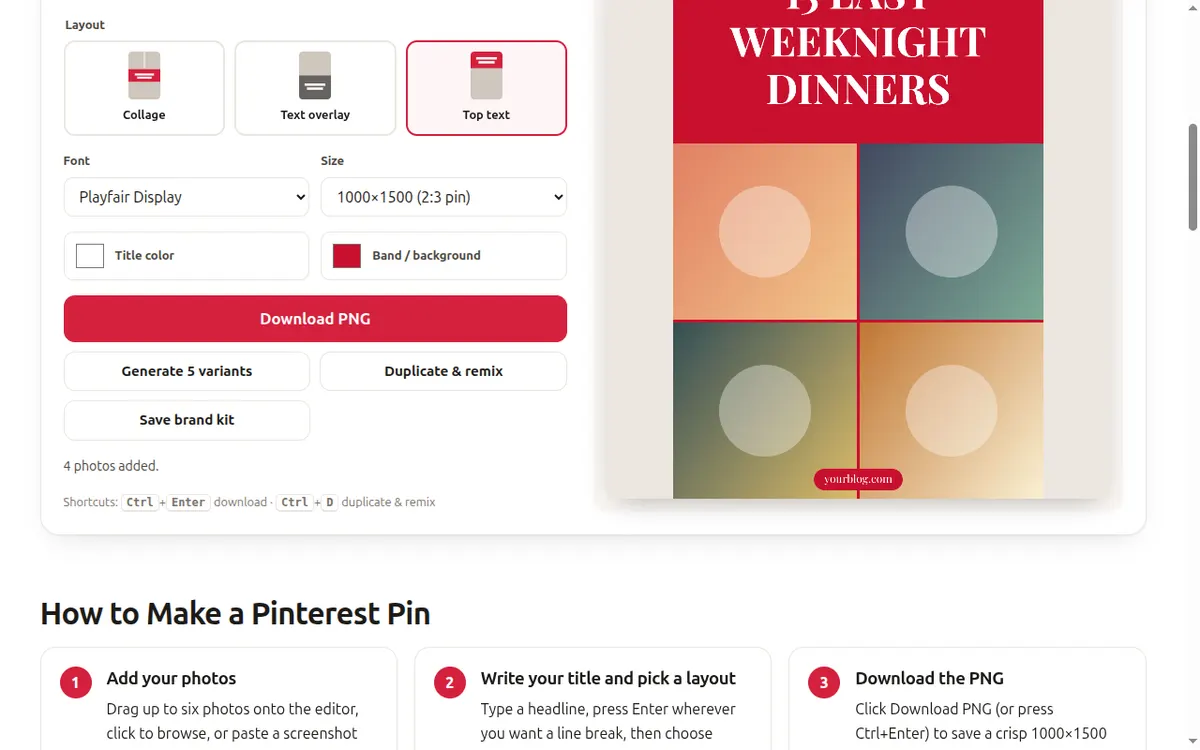
Step 4: Download, then upload to Pinterest
Click Download PNG or press Ctrl+Enter. The file is 1000×1500 and named after your title. Upload it to Pinterest with a keyword-rich description and a link to your post — or click Generate 5 Variants to test several designs.
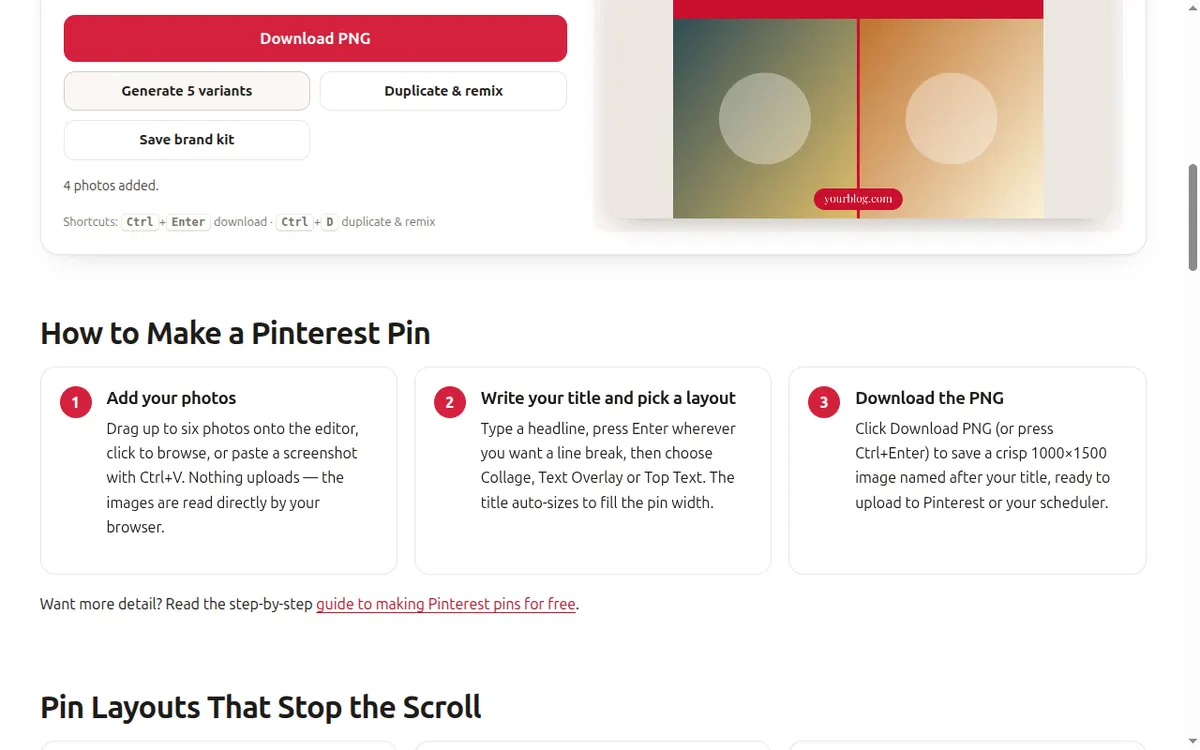
Writing titles that get clicks
The title does most of the work on Pinterest. People search with intent — “easy weeknight dinners”, “small balcony ideas” — so put that phrase in the title, then add the result they get. Numbers, timeframes and specific outcomes beat clever wordplay.
- Lead with the keyword: “Small Balcony Ideas” before “That Will Make You Smile”.
- Be specific: “15-Minute Pasta” beats “Quick Pasta”.
- Break lines on meaning: put the keyword on its own line so it reads at a glance.
- Keep it short: 3–8 words. Save the detail for the pin description.
Choosing the right layout
Collage suits roundups and step-by-step posts where several photos tell the story. Text Overlay is for a single hero image that sells itself. Top Text keeps the title on a solid color, which is the most readable option for quote pins, checklists and tutorials. Not sure? Click Generate 5 Variants and compare.
Pin descriptions and links
When you upload the PNG to Pinterest, write a one- or two-sentence description that naturally uses your keyword and a couple of related phrases, and link the pin to the exact page it describes. Pin new designs regularly rather than re-uploading the same image — fresh pins for an existing post are an easy way to keep a blog visible.
Get the size right
Quick Pin Maker exports 1000×1500 by default — the 2:3 ratio Pinterest recommends. For every other format, see the Pinterest pin size guide, or browse niche templates for colors and title ideas that suit your topic.